
Short answer
Google Search Console is Google's free tool for seeing how your site does in Google Search. To use it, add and verify your site, submit a sitemap, then use the Performance report to see which searches and pages bring in clicks, and the Page indexing report to see which pages Google has and hasn't stored. Check it once a month and after any big change to the site.
If you own a website and you’ve never opened Google Search Console, you’re guessing. It’s the only place Google tells you, in its own numbers, which searches you show up for, how often people click, and which of your pages it hasn’t bothered to store.
It’s free, and most of it is less technical than it looks. This guide covers how to use Google Search Console from set-up onwards: every report, what the numbers mean, the workflows that actually move traffic, and the reporting quirks from the last year that make a lot of sites think something’s broken when it isn’t.
What is Google Search Console?
Google Search Console is a free tool from Google that shows how your website performs in Google Search. It reports the searches you appear for, the clicks and impressions you get, your average position, which pages Google has indexed, and any problems it’s found, from broken pages to security issues.
Think of it as Google’s side of the story. Your analytics tool tells you what people do once they arrive on your site. Search Console tells you what happened before that: which searches your pages were shown for, where they sat, and whether anyone clicked.
What it’s used for, in practice:
- Seeing which searches bring people in, so you know what’s working and what to write next.
- Checking Google can find and store your pages, and finding out why when it can’t.
- Spotting problems early: a page that’s dropped, a set of pages that fell out of the index, a security warning, or a manual penalty. If something has already fallen, why your Google rankings dropped works through the causes in order.
- Telling Google about changes, like a new sitemap, a new page, or a move to a new domain.
You don’t need it to appear in Google. Google crawls sites whether you’ve signed up or not. But without it you’re running a shop with no till receipts.
How do I set up Google Search Console?
Sign in at search.google.com/search-console with a Google account, add your site as a property, prove you own it (usually with a DNS record or an HTML tag), then submit your sitemap. It takes about 15 minutes, most of which is waiting for the verification to go through.
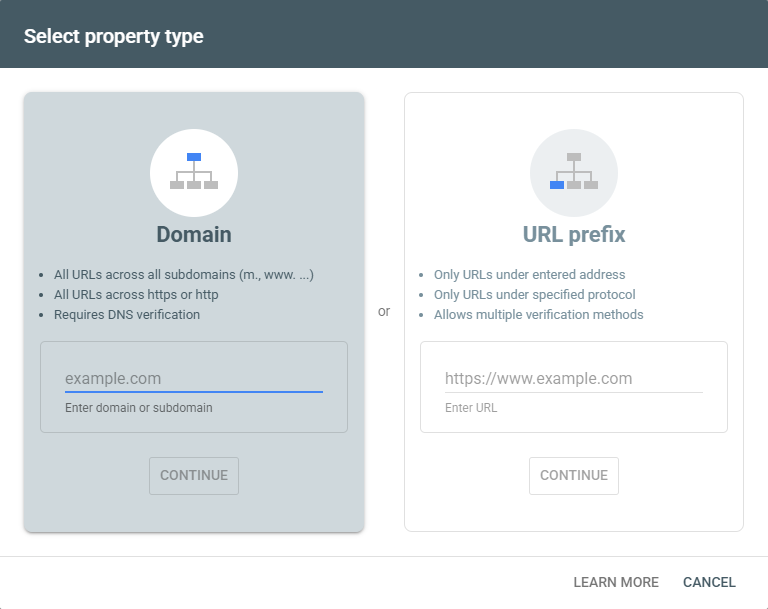
Sign in with a Google account
Go to search.google.com/search-console. Use an account you’ll keep, ideally a business one rather than a staff member’s personal Gmail.
Add a property
Click the property menu at the top left, then “Add property” and “Add a website”. Choose Domain or URL prefix (the difference is below). The same menu now offers Instagram, TikTok, X and YouTube channels too; for your website, you want the first option.
Verify that you own the site
Domain properties need a DNS record added at your domain provider. URL-prefix properties can use an HTML tag, an HTML file, Google Analytics or Google Tag Manager.
Submit your sitemap
Open Sitemaps, paste your sitemap address (often /sitemap.xml or /sitemap-index.xml) and click Submit.
Add anyone who needs access
Settings, then Users and permissions. Give your web person or SEO a full or restricted user, not your login.
Link Google Analytics
Settings, then Associations. This puts Search Console data inside Analytics, which is handy for reports.
Domain property or URL-prefix property?
A Domain property covers every version of your site in one go: http and
https, www and non-www, every subdomain and every folder. A URL-prefix
property only covers addresses that start with exactly what you typed,
including the https:// and the www
(Google’s property types guide).
In short: Go for a Domain property if you can get into your domain settings. You can add a URL-prefix property as well later if you want a closer look at one section.
How do I verify my site in Google Search Console?
For a Domain property, Search Console gives you a TXT record. Log in to wherever your domain is registered (GoDaddy, Namecheap, 123 Reg, Cloudflare and so on), add it to the DNS settings, then click Verify. DNS changes can take a while to spread, so if it fails, wait an hour and try again.
For a URL-prefix property, the HTML tag is usually quickest: copy the meta tag
into the <head> of your homepage, or paste the code into the box most
WordPress SEO plugins and website builders provide.
One thing people get wrong: leave the verification in place. Google says Search Console checks the token every so often, and if the file, tag or DNS record has gone, you lose access after a grace period (verification help). A website rebuild that quietly drops the tag is the usual culprit.
How do you read the Performance report?
The Performance report shows four numbers for your site in Google Search: clicks, impressions, click-through rate (CTR) and average position. Below the chart, a table breaks them down by query, page, country, device, search appearance and date. It holds 16 months of data, usually 2 to 3 days behind.
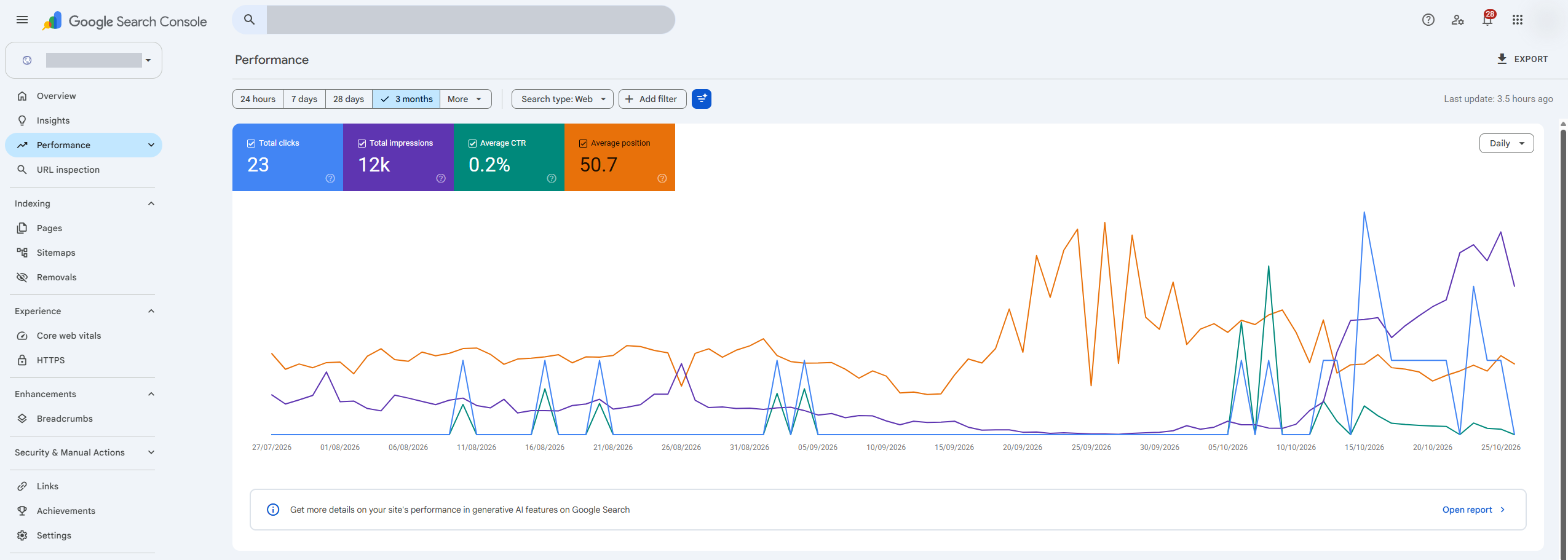
The four numbers, in plain English
Google’s definitions are precise, and they matter when you’re reading the numbers (Performance report help, how the metrics are counted):
| Metric | What it counts | Worth knowing |
|---|---|---|
| Clicks | Times someone clicked through to your site from Google | The closest thing to “visitors from Google” |
| Impressions | Times a link to your site appeared on a results page someone was viewing | Counts even if they didn’t scroll down to it |
| CTR | Clicks divided by impressions | Only meaningful page by page or query by query |
| Average position | Your highest position for each search, averaged | Page 3 isn’t counted if nobody looked at page 3 |
Two of these trip people up. Impressions count when your result is on the page someone loaded, not when they actually saw it. And average position is an average across every search you appeared for, so a site that ranks 2nd for ten searches and 60th for ten others shows “31”, which describes neither. Always look at position for one query or one page, not the site as a whole.
The tabs under the chart
The table is where the useful stuff is:
- Queries: the searches you appeared for. This is your keyword list (more on that below).
- Pages: which of your pages got the clicks and impressions.
- Countries and Devices: where and on what. If you only sell in the UK, filter to the UK before you read anything else.
- Search appearance: rich results and other special formats, when you have them.
- Dates: the day-by-day figures.
Click any row to filter the whole report to it. Click a query, then switch to the Pages tab, and you’ll see exactly which pages appear for that search. It’s the quickest way to spot two pages fighting each other for the same search.
Filters, regex and comparisons
The + Add filter button (or the “Search type” and “Date” chips along the top) lets you narrow everything down:
- Search type switches between Web, Image, Video and News results. Web is the default and the one most sites care about. Web is now split into text-based and multimodal searches, which covers Google Lens and Circle to Search.
- Date goes up to the last 16 months, with a Compare tab for two periods side by side. Compare this month with the same month last year rather than with last month, so seasonal dips don’t panic you.
- Query and page filters can contain, exclude, match exactly, or use a custom regular expression. A regex like
^(how|what|why|when|can|does|is)\bshows only question searches, which are great for blog topics (filter help). - Branded and non-branded queries can be split with a built-in filter on sites with enough traffic. Non-branded clicks are the ones your SEO actually earned; branded ones are people who already knew your name (branded queries help).
How do I find the keywords my site ranks for in Search Console?
Open Performance, make sure Queries is the selected tab, tick Average position, then sort by impressions. That’s every search Google showed your site for in the date range, with the clicks, CTR and position for each. Add a page filter to see the keywords for one page.
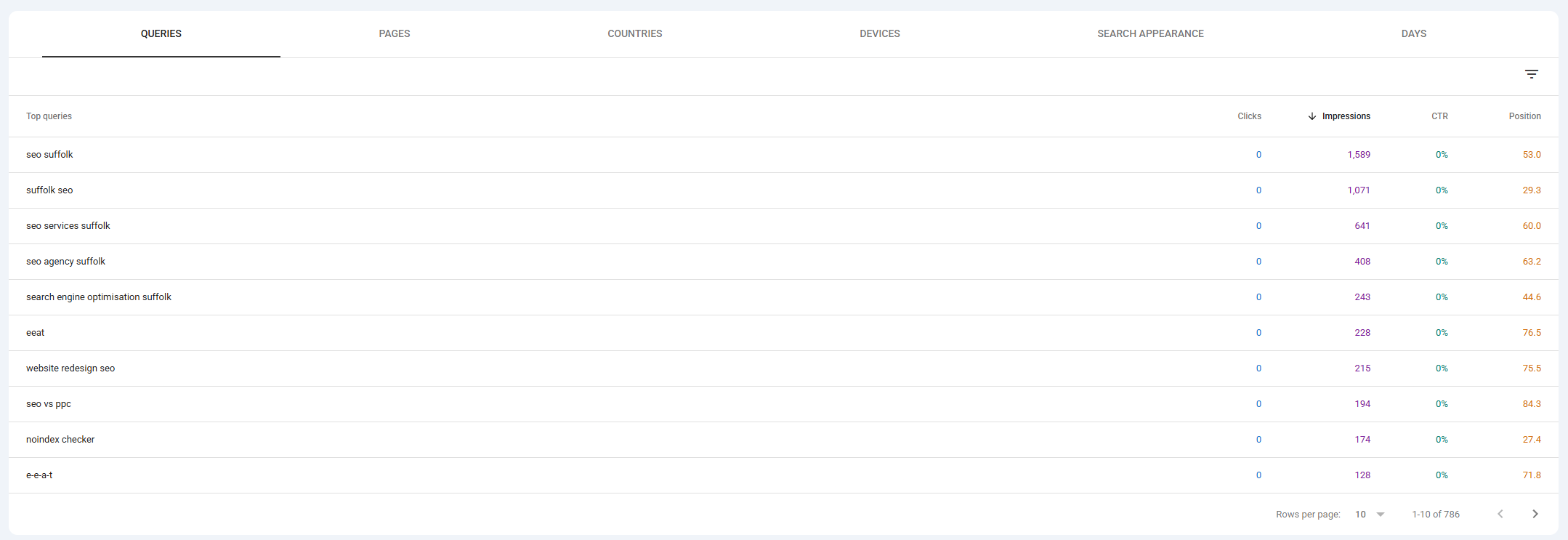
This is the most underused list in small business SEO. It’s not a guess from a keyword tool; it’s what Google actually matched your site to. Three ways to use it:
- Find the words customers really use. You might call it a “chartered building consultancy”. The queries tab might say people search “building survey cost”. Write for the second one.
- Spot pages ranking for the wrong thing. If your plumbing page gets impressions for “plumbing courses”, the page isn’t clear enough about what you offer.
- Mine it for content. Filter to question searches with the regex above. Each one is a page or a section you could write.
For the wider picture, including the searches you don’t rank for yet, you’ll need a keyword tool as well. My guide to keyword research covers that side.
How do you use Google Search Console for SEO?
Use it to find quick wins rather than just reading totals. Look for pages ranking 8th to 20th, pages with plenty of impressions but few clicks, pages losing clicks compared with last year, and searches where two of your pages compete. Each points to a specific fix.
The four workflows below are where I’d spend the first hour with any site. None of them need a paid tool.
Figure
Where your quick wins are: sort your pages by impressions and click-through rate
Lots of impressions, few clicks
Google already shows the page. A better title and description, or a better match to the search, can win clicks at the position you already have.
Lots of impressions, lots of clicks
Your best pages. Keep them updated, link to them from other pages, and don’t rewrite them for the sake of it.
Few impressions, few clicks
Either the topic gets no searches or Google isn’t ranking the page. Check it’s indexed, then decide: improve it, merge it or redirect it.
Few impressions, good clicks
A small topic that works. Look for related searches the page could cover too.
1. Find pages stuck just off page one
Filter the Queries or Pages table to an average position between 8 and 20 (click the filter icon above the table, then Position, then “greater than” and “smaller than”). These are pages Google already rates. Moving from 12th to 6th is a far smaller job than ranking a new page from nothing.
The usual fixes: answer the search more directly near the top of the page, cover the questions the pages above you cover, and link to the page from your other relevant pages.
2. Rewrite titles on pages with impressions but no clicks
Sort pages by impressions and look for ones with a CTR well below your other pages at a similar position. Something’s putting people off: often a title that says the business name and nothing else, or a description Google has rewritten because yours didn’t match the search. My organic CTR guide goes through this step by step.
3. Catch pages that are slipping
Set the date to Compare, last 3 months against the same 3 months a year earlier, then open the Pages tab and sort by the clicks difference. Pages losing the most clicks are where to look first: has a competitor published something better, has the content gone out of date, or has the page changed?
4. Find pages competing with each other
Click a query you care about, then open the Pages tab. If two or more of your pages appear for it, they’re splitting Google’s attention. Usually the fix is to make one page the clear answer, merge the weaker one into it and redirect the old address.
Why have my Search Console impressions dropped?
If your impressions fell in 2025, it may not be anything you did. Google stopped supporting a setting that ranking tools used to load 100 results at once in September 2025, which cut reported impressions on most sites, and a separate Google logging error under-reported impressions from May 2025 to April 2026. Check clicks first: if clicks are steady, you probably haven’t lost anything real.
Three reporting changes from the last year and a half explain a lot of “something’s wrong with my site” moments:
- The “100 results” change, September 2025. Google stopped supporting a setting that let rank-tracking tools load 100 results on one page. The widely accepted explanation is that those tools’ page loads had been counting as impressions for sites far down the results, so when they stopped, impressions fell and average position appeared to improve overnight. Google told Search Engine Land the parameter “is not something that we formally support” (Search Engine Land), and one study of 319 sites found 87.7% saw impressions fall (Search Engine Land data).
- A logging error, May 2025 to April 2026. Google’s own data anomalies page says “a logging error prevented Search Console from accurately reporting impressions from May 13, 2025 until April 27, 2026”, so impressions in that window read lower than they should, which skews CTR and average position too. Clicks weren’t affected (Google’s data anomalies list).
- FAQ rich results ending, May 2026. Google stopped showing FAQ rich results from 7 May 2026, so sites that had them saw FAQ impressions drop in the Performance report.
The practical rule: clicks are the number to trust across this period. If you’re comparing impressions year on year, check whether either period falls inside those dates before drawing conclusions. Google’s data anomalies page is worth bookmarking; it lists every known reporting glitch.
Does Search Console show AI Overviews and AI Mode traffic?
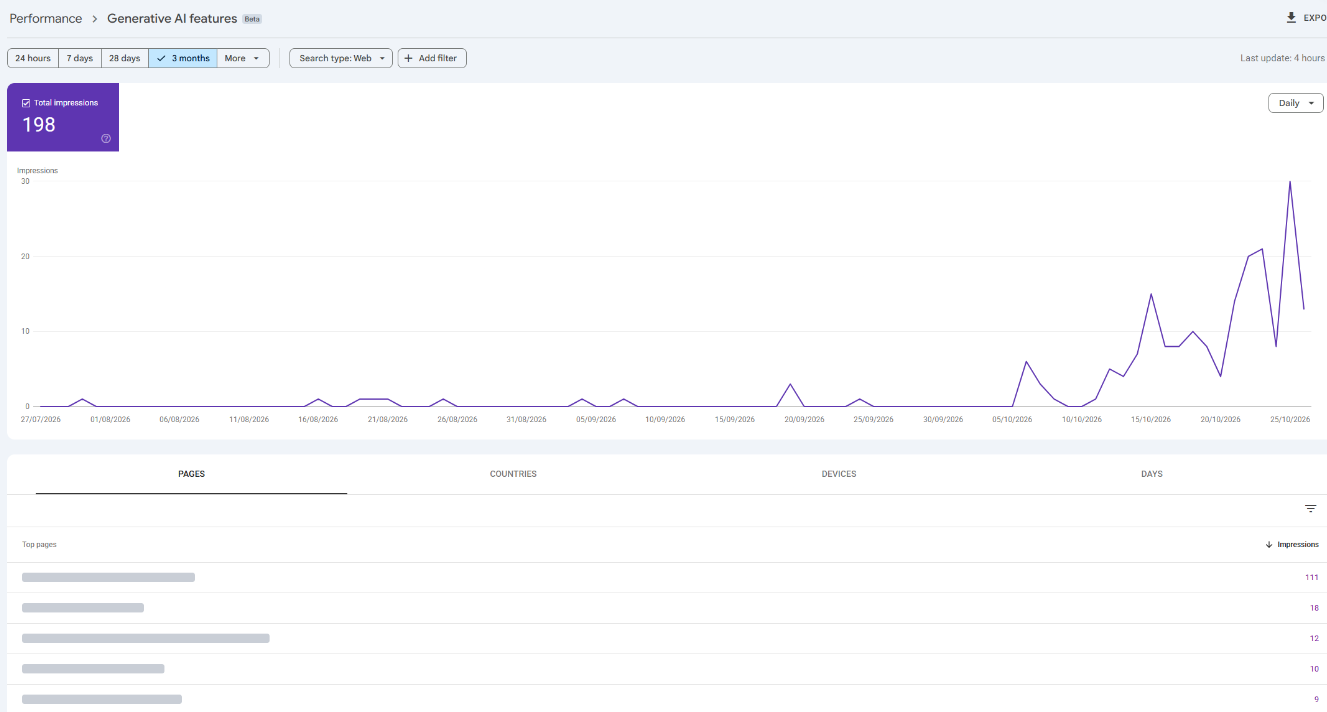
Yes, but mixed in with everything else. Clicks and impressions from AI Overviews and AI Mode count in the Performance report under the Web search type. There’s also a separate Generative AI performance report, rolled out to all sites by August 2026, which shows impressions from those AI features on their own, but not clicks.
Google’s documentation says traffic from its AI features is “included in the overall search traffic in Search Console” (AI features and your website). An AI Overview takes up a single position, so every link inside it shares the same position. In AI Mode, a follow-up question counts as a new search (how the metrics are counted).
The newer Generative AI performance report shows how often your pages appeared in AI Overviews and AI Mode, by page, country, device and date. It only reports impressions, and it won’t appear for sites with too few AI impressions (Generative AI report help). It’s the best free answer to “is my site showing up in Google’s AI answers?”
How do I check if a page is indexed in Google?
Open the Page indexing report under Indexing to see how many of your pages Google has stored and the reasons for the rest. To check one page, paste its address into the URL Inspection bar at the top of Search Console. It tells you whether that page is indexed and, if not, why.
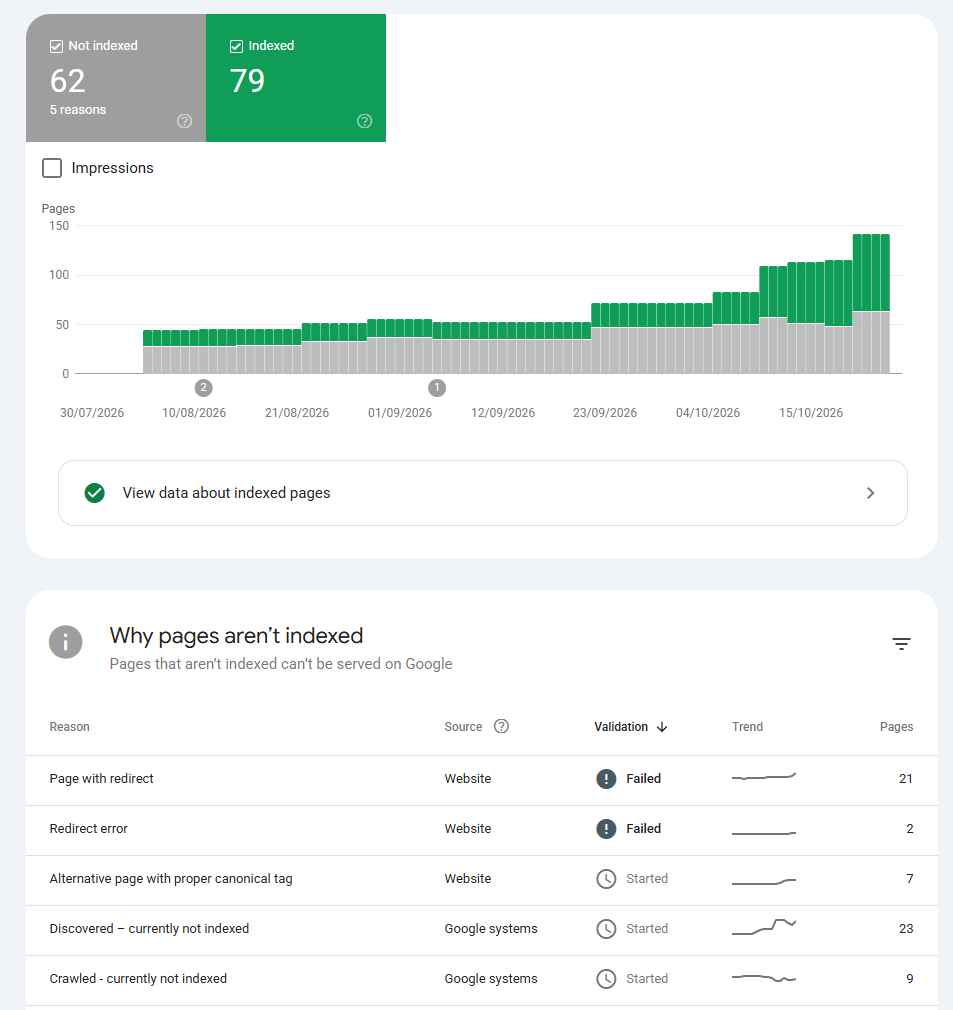
The first thing to know: “Not indexed” isn’t automatically a problem. Redirects, duplicates and pages you’ve deliberately hidden are all meant to be left out. What matters is whether pages you want in Google are on the list.
The reasons you’ll see most, and what to do about each (Page indexing report help):
| Reason | What it means | What to do |
|---|---|---|
| Crawled – currently not indexed | Google visited and decided not to store it, for now | Improve the page if it matters. Thin or near-duplicate pages often land here |
| Discovered – currently not indexed | Google knows it exists but hasn’t visited yet | Link to it from other pages. Common on new or large sites |
| Duplicate without user-selected canonical | Google thinks another page is the main version | Add a canonical tag pointing to the version you want, or merge them |
| Duplicate, Google chose different canonical than user | You picked one version, Google picked another | Check the pages really are different, and that links point to your choice |
| Alternative page with proper canonical tag | A duplicate pointing to the right main page | Nothing. Working as intended |
| Page with redirect | An old address that redirects | Nothing, unless it’s in your sitemap. Then update the sitemap |
| URL marked ‘noindex’ | The page tells Google not to index it | Fine if deliberate. A disaster if it’s your service page |
| Not found (404) | The page doesn’t exist | Redirect it if it moved or has links pointing at it. Otherwise leave it |
| Soft 404 | Says “not found” or is near-empty, but returns a normal page | Return a real 404, redirect it, or add proper content |
| Blocked by robots.txt | Your robots.txt stops Google crawling it | Check it’s deliberate. Robots.txt doesn’t stop indexing, noindex does |
| Server error (5xx) | Your server failed when Google visited | Talk to your host if it keeps happening |
Once you’ve fixed something, open that reason and click Validate fix. Google checks a sample first, then the rest. It usually takes up to about two weeks, sometimes longer.
How do I fix 404 errors in Google Search Console?
Most 404s don’t need fixing. A page you deleted on purpose should return a 404, and Google drops it in time. Fix the ones that matter:
- Pages that moved. Add a 301 redirect from the old address to the new one.
- Pages other sites link to. Check the Links report; if a 404 has links pointing at it, redirect it to the closest live page so you keep the value.
- Pages in your sitemap. Remove them, because your sitemap should only list live pages.
- Pages your own site links to. Fix the link at the source.
How do you use the URL Inspection tool?
Paste any address from your site into the search bar at the top of Search Console. It shows whether Google has indexed that page, when it last crawled it, which version Google treats as the main one, and any problems. “Test live URL” checks the page as it is now, and “Request indexing” asks Google to recrawl it.
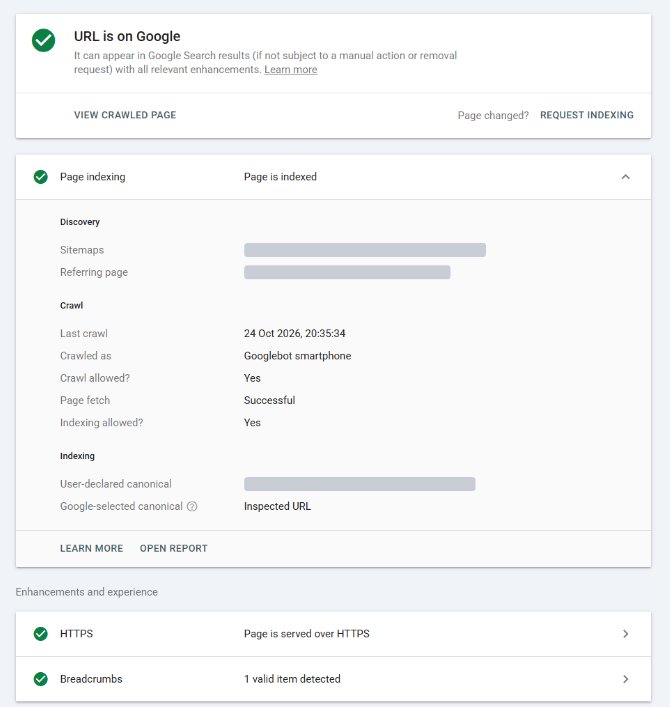
There are two views, and the difference matters (URL Inspection help):
- The indexed version is what Google stored last time. It shows the last crawl date, whether Google crawled as a mobile or desktop visitor, the canonical you declared and the one Google chose, and any rich results it found.
- The live test fetches the page right now. Use it after a fix, to check Google can reach the page before you request indexing. A pass means Google can access it, not that it’ll be indexed.
Request indexing is for one important page at a time: a new service page, or one you’ve just fixed. There’s a daily limit, and Google is clear that a request “does not guarantee” indexing. Don’t sit there requesting every page on your site; that’s what your sitemap is for.
What do the Sitemaps and Removals tools do?
The Sitemaps report is where you give Google the list of pages you want crawled and check it was read without errors. The Removals tool hides a page from Google results for about six months while you remove it properly. Neither guarantees anything permanent on its own.
Sitemaps. Paste your sitemap address under “Add a new sitemap” and submit. The status should say Success. “Has errors” means some of it couldn’t be read, and “Couldn’t fetch” usually means the address is wrong or blocked. Google says a page being in your sitemap doesn’t guarantee it’ll be crawled or indexed, and deleting a sitemap from the report doesn’t make Google forget it (Sitemaps report help). Most website platforms create and update a sitemap for you, so this is usually a once-only job.
Removals. For emergencies: a page with personal details, a price that should never have gone live. A temporary removal hides the page from Google for about six months. It doesn’t delete it, and it doesn’t stop Google crawling it. To remove something for good, delete the page so it returns a 404 or 410, password-protect it, or add a noindex tag (Removals help).
What do the Core Web Vitals and HTTPS reports show?
The Core Web Vitals report rates your pages Good, Needs improvement or Poor on loading speed, responsiveness and layout stability, using real visits from Chrome users over the last 28 days. The HTTPS report shows how many of your indexed pages are served securely. Both sit under Experience.
Core Web Vitals uses three measurements, judged on what 75% of real visits experience (Core Web Vitals report help):
| Metric | What it measures | Good | Poor |
|---|---|---|---|
| LCP (Largest Contentful Paint) | How fast the main content loads | 2.5 seconds or less | Over 4 seconds |
| INP (Interaction to Next Paint) | How fast the page reacts to a tap or click | 200ms or less | Over 500ms |
| CLS (Cumulative Layout Shift) | How much the page jumps around as it loads | 0.1 or less | Over 0.25 |
Mobile and desktop are reported separately, and similar pages are grouped together. Small sites often see “Not enough usage data”, which just means not enough Chrome users have visited to give a reliable figure. In that case, test individual pages with PageSpeed Insights instead.
The HTTPS report should show all, or nearly all, of your pages as HTTPS.
If it lists HTTP pages, the usual causes are a sitemap still listing old
http:// addresses, or a canonical tag pointing at the HTTP version
(HTTPS report help).
What are the Enhancements reports?
Enhancements reports show the structured data Google found on your pages, like breadcrumbs, product details, reviews, events or recipes, and whether it’s valid. They only appear if your site uses that type of markup. Fix anything marked Invalid, because invalid markup won’t show as a rich result.
You’ll only see the reports that apply to you: an online shop might see Product snippets and Merchant listings, a recipe blog would see Recipes, most service businesses just see Breadcrumbs (rich result reports help).
Google has also been trimming the list. Several types were dropped in 2025, and FAQ rich results stopped appearing in May 2026 (Google Search Central updates). If an old report has vanished from your Search Console, that’s why. It isn’t something you broke.
What are manual actions and security issues?
A manual action is a penalty applied by a person at Google when part of your site breaks Google’s spam policies. A security issue means Google has found hacked content, malware or a deceptive page on your site. Both have their own report under Security & Manual Actions, and both should say “No issues detected”.
If either report shows a problem, you’ll also get an email and a message in Search Console. Fix every affected page, not just some of them, then click Request review and explain what you fixed (Manual actions help, Security issues help). For hacked sites, get your host or developer involved before you request a review, because a site that’s reinfected a week later goes back to square one.
Does Google Search Console show backlinks?
Yes, in the Links report. It shows your most-linked pages, the sites linking to you most, and the most common link text, plus your internal links. It’s a sample rather than every link, and it doesn’t say which links are nofollow.
It’s the free way to see who links to you (Links report help). The table shows 1,000 rows, and you can export up to 100,000. Use it to check your important pages have links pointing at them, to find old pages with links that now 404, and to see which pages your own internal links favour. If your service pages are near the bottom of the internal links list, your site isn’t telling Google they matter.
What’s in the Search Console settings?
Settings is where you add users, link Google Analytics, check how Google crawls your site, view your robots.txt file and tell Google about a move to a new domain. Most small business owners only need Users and permissions and Associations.
How do I add a user to Google Search Console?
Go to Settings, then Users and permissions, then Add user. Enter their Google account email and pick a permission level (Users and permissions help):
- Full user: sees all the data and can do some things, like submitting sitemaps. Right for your web developer or SEO.
- Restricted user: can view most data. Right for someone who just needs to look.
- Owner: full control, including adding and removing people. Keep this for yourself.
Only owners can add users, and you can add up to 100 non-owners per property. When someone leaves, or you stop working with an agency, remove their access the same day.
The other settings
- Associations links Search Console to Google Analytics (you need to be an owner in Search Console and an editor in Analytics), Google Ads and Merchant Center (Associations help).
- Crawl stats shows how often Googlebot visits, how fast your server responds and what it finds. Google says it’s for advanced users and sites with fewer than about 1,000 pages generally don’t need it (Crawl stats help). It’s still worth a glance if your host is slow.
- robots.txt shows the robots.txt files Google found, when it last read them and any errors. It replaced the old robots.txt Tester in November 2023 (robots.txt report help).
- Change of address is for moving to a new domain. Set up 301 redirects first, verify both domains, then submit the move here (Change of address help). It isn’t needed for a move from HTTP to HTTPS.
What’s new in Google Search Console?
Search Console added a lot between 2024 and 2026: a 24-hour view, weekly and monthly views, a branded queries filter, custom chart annotations, query groups, a built-in Insights report, an experimental AI assistant for setting up reports, a multimodal search type, and the Generative AI performance report.
The ones worth knowing about:
- Insights report. A simpler summary of clicks, top content, top searches, and other traffic sources, now inside Search Console rather than a separate tool (Insights help). A good starting point if the main report feels like a lot.
- Query groups, inside Insights, bunch similar searches together so you see topics rather than hundreds of near-identical rows.
- 24-hour, weekly and monthly views in the Performance report, for checking yesterday’s launch or smoothing out a spiky chart.
- AI-powered configuration. Type what you want (“compare clicks from the UK on mobile, last 3 months vs last year”) and it sets the filters up. It’s experimental and limited to 20 requests a day, and you confirm its suggestions before they apply (help page).
Google Search Console vs Google Analytics: what’s the difference?
Search Console shows what happens in Google Search before someone reaches your site: searches, impressions, clicks and rankings. Google Analytics shows what people do once they arrive, from any source. Use Search Console for SEO and indexing, and Analytics for what visitors do and whether they enquire.
In short: The numbers won’t match, and they’re not meant to. Search Console clicks and Analytics sessions are counted differently.
Google lists the reasons the two disagree: missing tracking tags, people declining cookies, time zones, how each tool attributes a visit, and Search Console counting only the main version of each page (Google’s comparison).
What should you check in Search Console every month?
Once a month: compare clicks with the same period last year, look for pages that lost the most clicks, check the Page indexing report for new problems, scan for pages ranking 8th to 20th, and make sure Manual actions and Security issues are clear. It takes about 15 minutes.
A 15-minute monthly Search Console check
0/ 7
That is the whole list. Anything still unticked is your next job.
Do that every month and you’ll catch most problems weeks before they show up as a quiet phone. If you’re short on time, the first two steps alone tell you whether things are heading the right way.
Common questions
Is Google Search Console free?
Yes. Google describes Search Console as a free service, and the only thing you need is a Google account. You don't have to sign up to it for your site to appear in Google, but without it you can't see how your site is doing or what's stopping pages from showing.
How long does Search Console take to show data?
Performance data usually arrives within 2 to 3 days, and the newest days can change for a few hours after they first appear. The 24-hour view shows hourly data that's more recent but still preliminary.
How far back does Google Search Console data go?
16 months. Anything older disappears, so if you want a longer record, export it regularly or set up the bulk data export to BigQuery.
Why don't my Search Console and Google Analytics numbers match?
They measure different things. Search Console counts clicks from Google Search results; Analytics counts sessions on your site. Cookie consent, missing tracking tags, time zones (Search Console uses Pacific Time), and the way each tool attributes visits all push the numbers apart. Use each for what it's good at rather than trying to make them agree.
Does requesting indexing guarantee a page gets indexed?
No. Google says a request doesn't guarantee the page will appear in its index, and there's a daily limit on requests. It's useful for one important page you've just published or fixed. For lots of pages, submit or update your sitemap instead.
How many users can I add to Search Console?
Up to 100 users who aren't owners, per property. Only owners can add people. Add them under Settings, Users and permissions, as either a full user, who can see everything and take some actions, or a restricted user, who can view most data.
Does Search Console show AI Overviews traffic?
Yes. Clicks and impressions from AI Overviews and AI Mode are counted in the Performance report under the Web search type, mixed in with everything else. Since 2026 there's also a separate Generative AI performance report showing impressions from those AI features on their own.
Want to hand your site over to a professional?
Everything above is yours to run with. If you'd rather someone else ran it, send me the address and I'll tell you what I'd fix first — free, and in plain English.
Get a free SEO audit